Video Hook Up Instructions
by Mick Percy
| Edit in Backend
How to join a video hook up
Get the URL
You will need the web address to be able to join the video chat. You can get this by registering for the event via the website, or you can receive it directly from one of the admins.
For example - https://cyclekarts.org.au/chat/7/KxKHuQm4AW
(This is a test URL you can actually use it to test these instructions)
Open the URL in your browser
Cut and paste the URL into your browser, or click on the link. If you registered on the website, you will receive an email that contains the link
After opening the link in your browser, you should now see a page that looks like this...
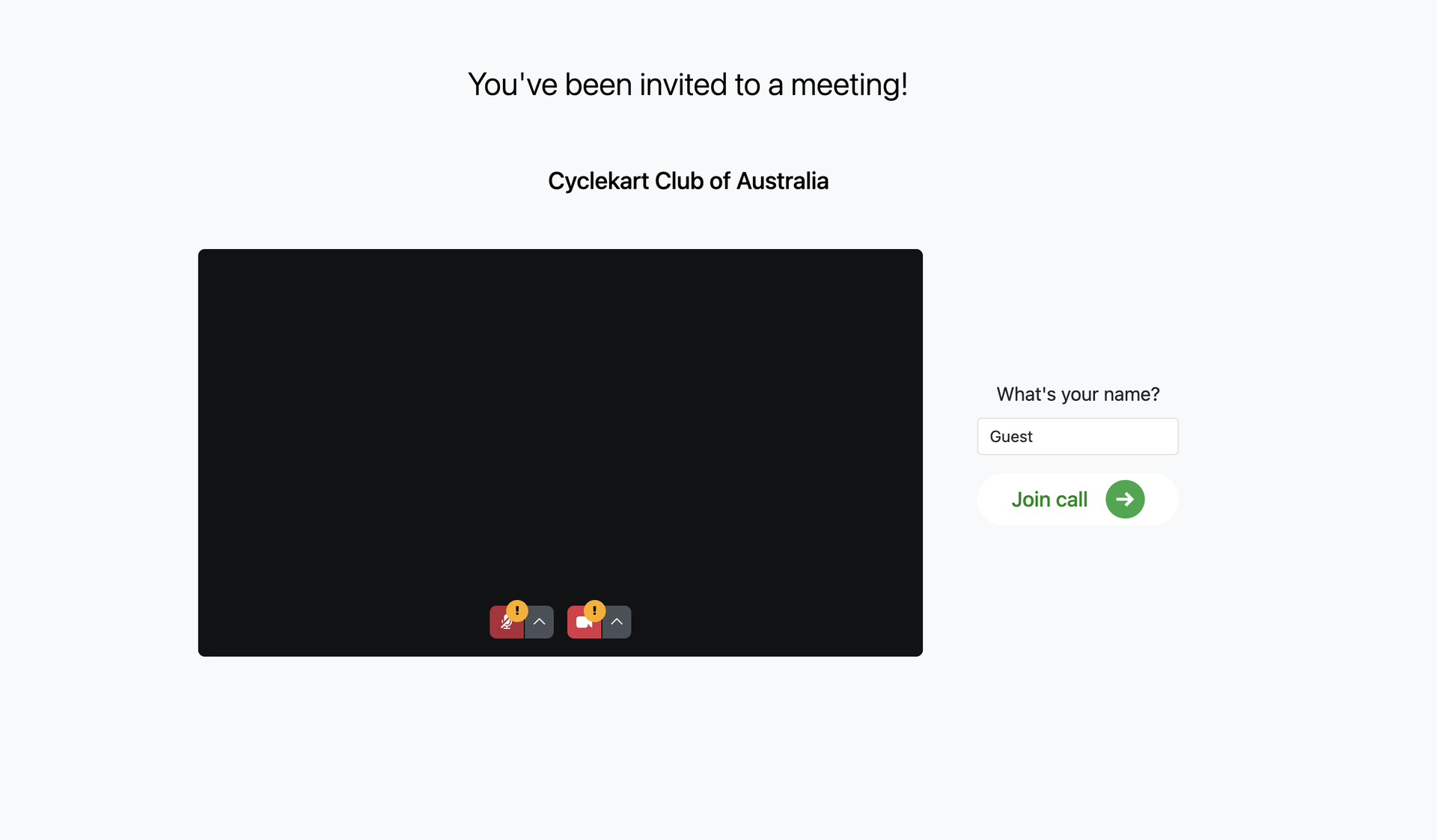
There's a few things to note about the video dialog.
Name: Be sure to type in your name - This is displayed to everyone else so they know who you are. If you are logged into the website this will be done automatically
Allow Browser Access
Microphone / Video Access: The exclamation marks on top of the red microphone and video buttons mean that you need to grant permission for the browser to access your microphone and camera. To do this click the red microphone or camera button and a dialog will open up That looks like this...
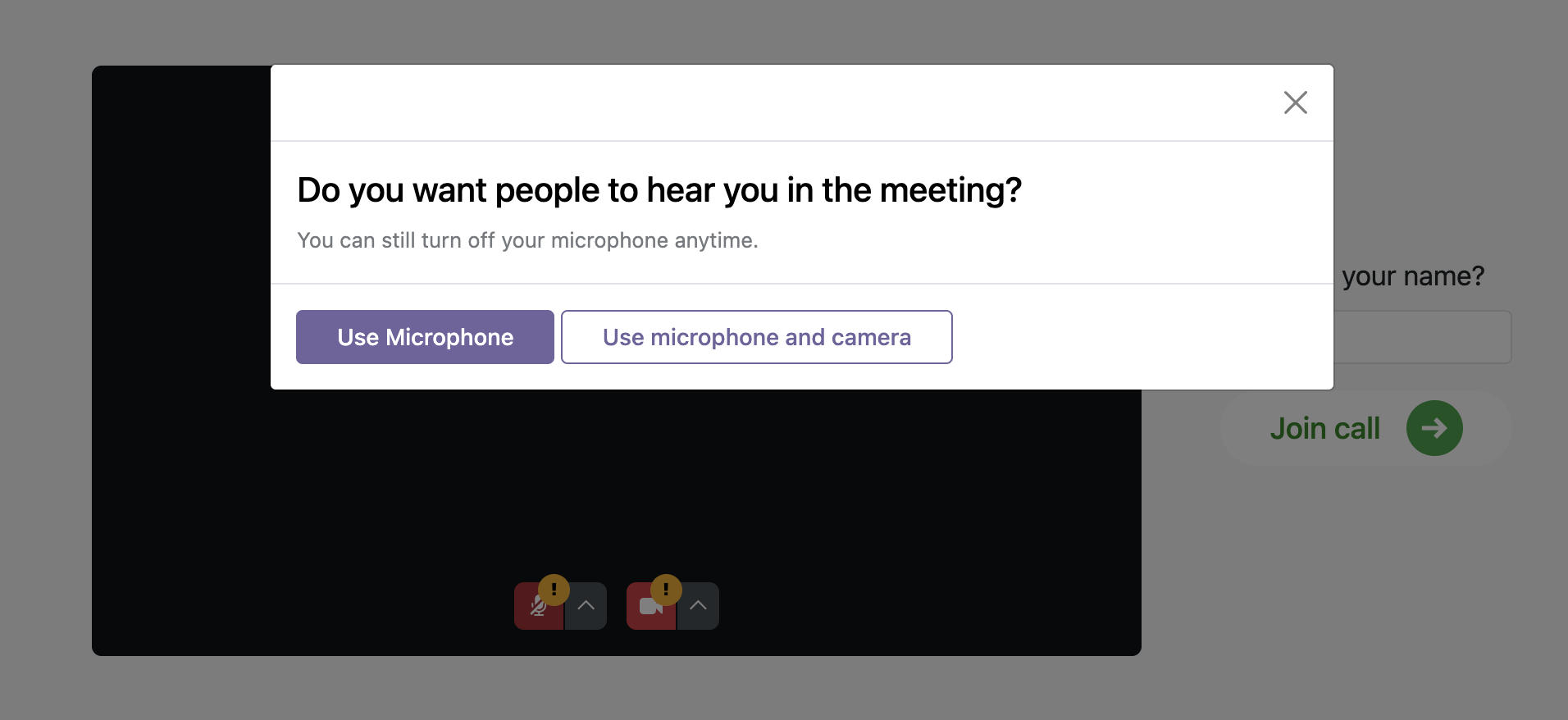
Just click the appropriate button to allow the browser to have access. Your browser will then ask you to grant it permission which will open up another dialog.
This dialog / process may look a little different depending on which browser you use, but the process will be very similar. If you are using Chrome on a Mac it will look like this.
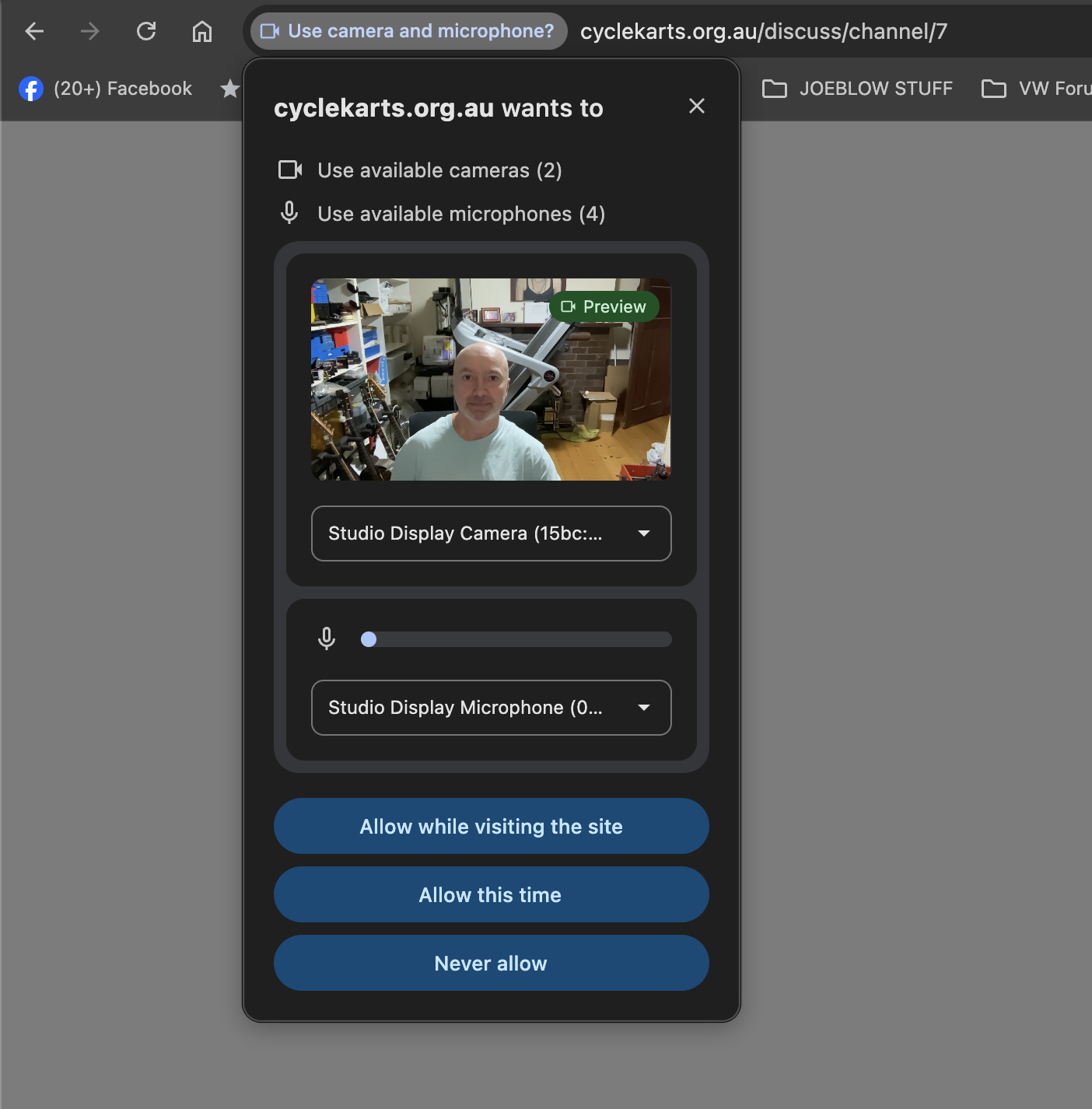
If you have more than one camera and microphone, select the appropriate devices, otherwise the default settings should normally work
Then choose "Allow whilst visiting the site" or "Allow this time" as appropriate
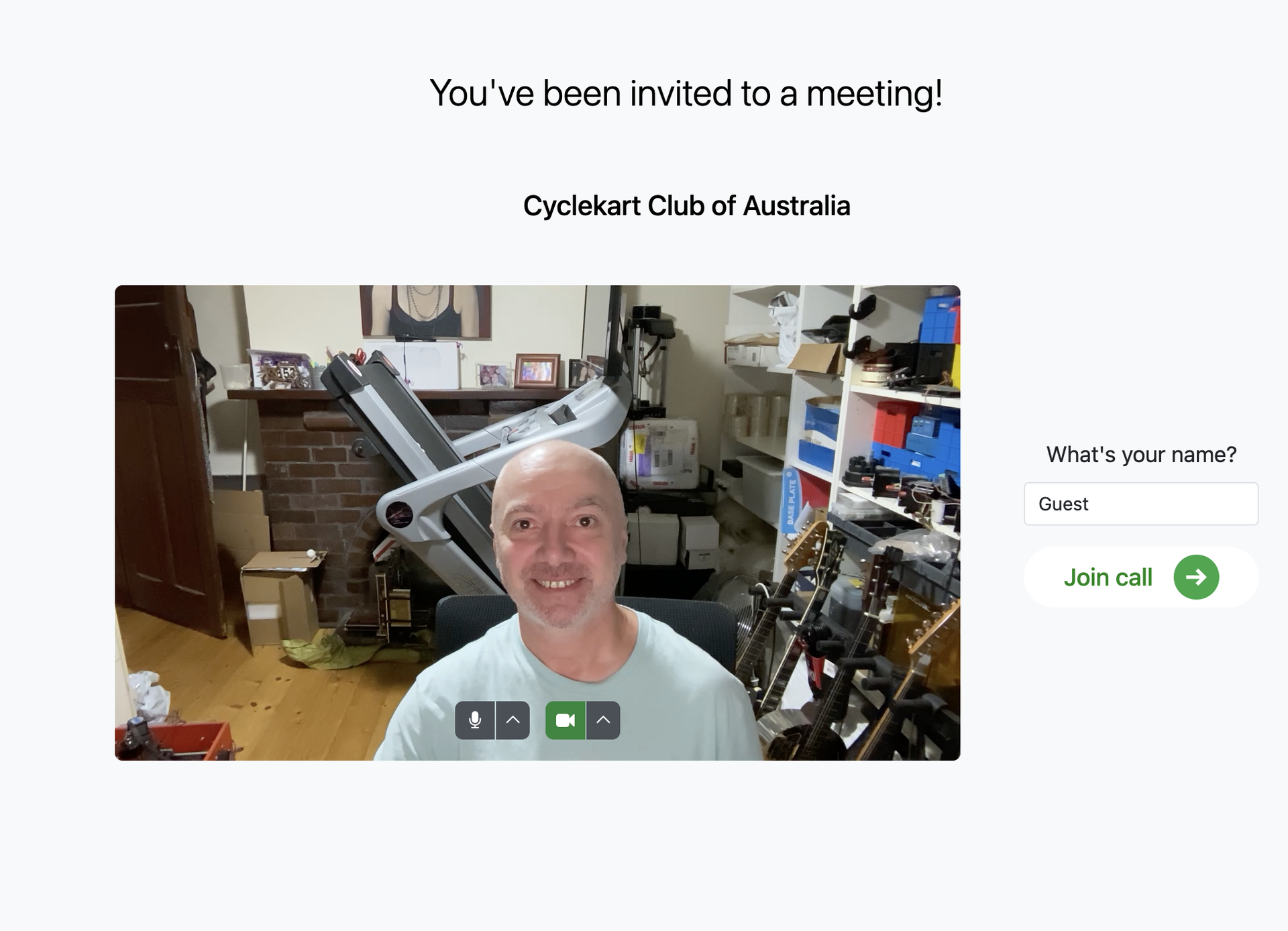
Once you have granted your browser access, you should then see your live camera feed in the video window. (What a happy looking fellow he is)
Join the chat
Now all you need to do is hit the 'Join Call' button to actually join the video call.
The browser will then change to show you the other chat participants.
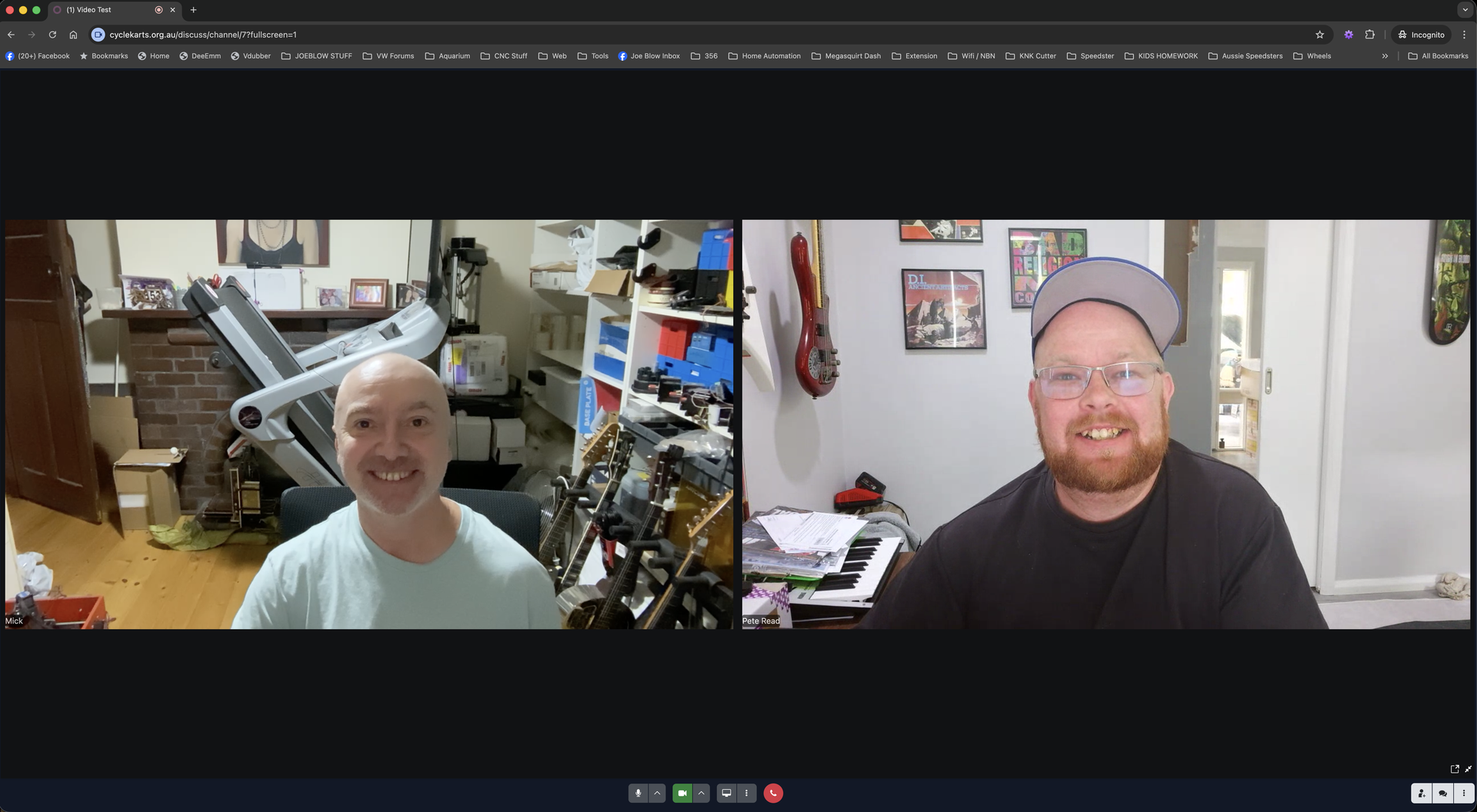
Now you can talk and chat with everyone else.
If at any time you need to mute your microphone, or hide your video, just click on the microphone or camera buttons at the bottom of the screen.
When you want to leave the chat, just click on the red 'Phone' icon to end the call.
Other settings
There are also some additional settings for the camera and microphone that are accessible by clicking the arrow buttons. This will allow you to select alternate microphones or cameras if you have more than one connected to your system. You can also blur the video background if your room is messy and untidy (like mine is lol)